

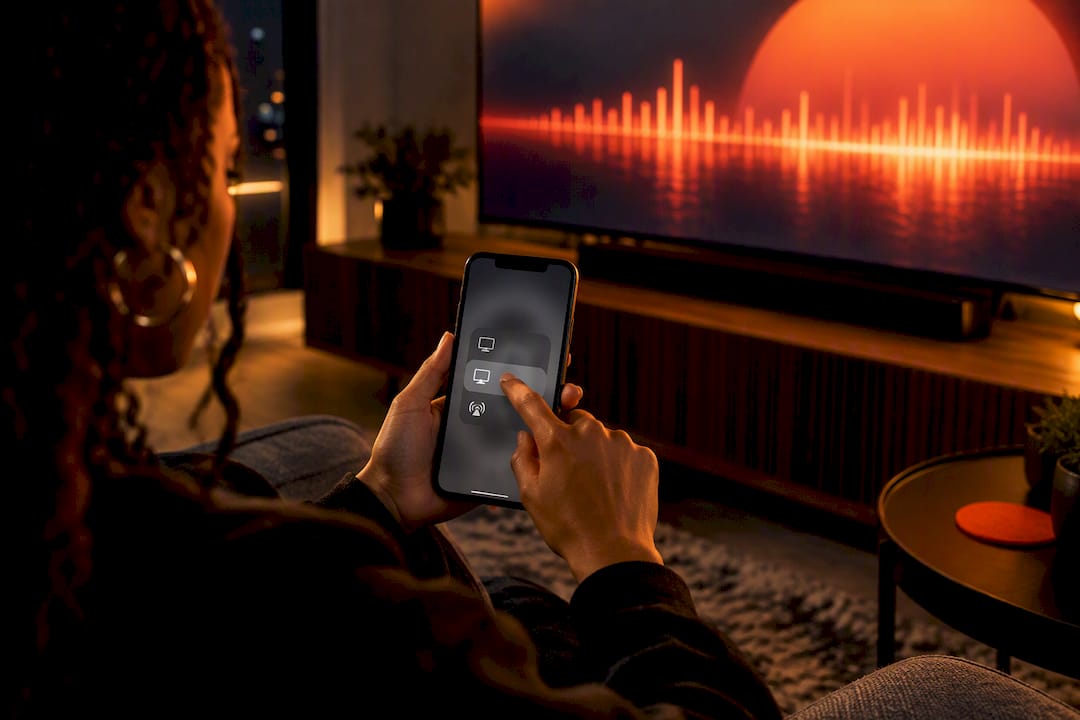
You can cast radio to your TV using Google Cast on a Chromecast or Cast built into your smart TV, AirPlay 2 if you’re in the Apple world, a native radio app installed right on your Android TV or Google TV, or by casting a Chrome browser tab from your laptop. Every method needs the same basic setup: your phone or computer and your TV on the same Wi-Fi network, plus a receiver that actually supports casting. Most hiccups come down to network settings, and we’re breaking those down later too.
TL;DR:
- Casting works seamlessly if your device and TV are on the same Wi-Fi network and your receiver supports Google Cast or AirPlay 2.
- Google Cast is fastest for Android devices, while AirPlay 2 offers smooth streaming for Apple users with compatible devices.
- Native TV apps are ideal for long listening sessions without draining your phone battery, especially if they support Cast or AirPlay.
- Troubleshooting common casting issues involves checking network settings, updating firmware, rebooting devices, and ensuring permissions are granted on your phone.
- Casting from a computer via Chrome tab is reliable but may require careful configuration of network and browser permissions.
Table of Contents
- Which casting method fits your setup?
- How to cast radio using Google Cast or Chromecast
- How to send radio audio to Apple TV or an AirPlay 2 smart TV
- When a native TV app beats casting from your phone
- Checking that your radio app actually supports casting
- Fixing the most common casting problems
- How to cast Hot Mic Radio to your TV right now
- Picking the right long-term setup for how you actually listen
- Ready to bring Hot Mic Radio into your living room?
- Where to check official casting documentation
- Sources
- FAQ
Which casting method fits your setup?
No shade to any of these routes, they all get the job done, but picking the right one for your gear saves you a headache. Here’s the quick breakdown before you commit to a method.
- Google Cast / Chromecast: works with Chromecast devices and most modern smart TVs that have Cast built in, and it’s the fastest route for Android users since it’s baked into the OS.
- AirPlay 2: the natural pick if you’re on iPhone or iPad and your TV is either an Apple TV or a newer AirPlay 2-enabled smart TV.
- Android TV / Google TV native apps: best when you want to skip the phone entirely and control everything from your TV remote.
- Chrome tab casting: the move when you’re on a laptop or desktop and want to send a radio website’s audio straight to the TV.
Chromecast wins on setup speed for most households since so many TVs already have it built in. AirPlay 2 is just as smooth if you’re locked into Apple gear, no extra app required. Android TV apps take a little more setup time upfront (installing, browsing station lists) but pay off with a phone-free listening session. Chrome tab casting is the underdog here, it’s clunkier than the mobile options but it’s the only one that works straight from a computer without an app.
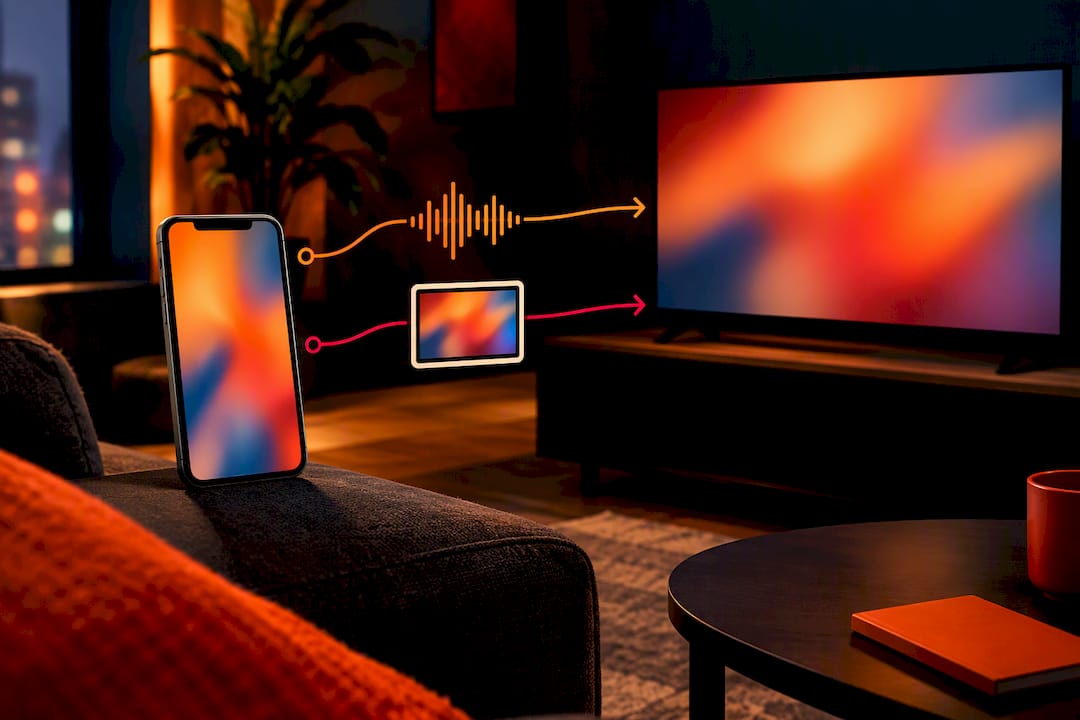
The real question is whether you want the cast to hand off playback (phone or laptop freed up, audio plays independently on the TV) or just mirror what’s on your screen. Cast and AirPlay 2 typically hand off; screen mirroring does not, and that distinction shapes which one you’ll want for background listening versus a quick song check.
How to cast radio using Google Cast or Chromecast
This is the route most Android users, and plenty of cross-platform folks, will land on first. Here’s what you need before you start and how to actually do it.
Prerequisites:
- A Cast-enabled receiver: either a physical Chromecast plugged into your TV or a smart TV with Cast built in.
- Your phone or computer and the TV on the same Wi-Fi network.
- The Google Home app installed and set up if this is your first time casting to that device.
On mobile:
- Open your radio app or the station’s website and start playback.
- Tap the Cast icon, usually a small screen with a signal wave in the corner of the player.
- Select your Chromecast or Cast-enabled TV from the list.
- Playback hands off to the TV, and the receiver plays the stream independently, so your phone is free for texting, scrolling, whatever you need to do.
On desktop (Chrome browser):
- Pin the Cast button to your Chrome toolbar if it isn’t already visible.
- Open the radio station’s site and start the stream.
- Click the Cast button and choose “Cast tab” rather than casting your entire screen, since tab casting is the recommended way to send reliable audio to a Cast device.
- Pick your Chromecast or Cast-enabled TV from the device list.
A few radio apps build Cast support right in as a feature, not an afterthought. Radio Adfree is one example, it hands off playback to Chromecast and shows the station logo, cover art, and artist info right on your TV screen. RadioUpnp is another that leans into Cast and DLNA support for listeners who want more than a basic stream.
Pro Tip: Always choose “cast tab” over casting your whole screen when you’re on desktop. Full-screen mirroring can route audio through your computer’s speakers instead of the TV depending on your operating system, which defeats the whole point.
How to send radio audio to Apple TV or an AirPlay 2 smart TV
If you’re deep in the Apple ecosystem, AirPlay 2 is your move, and it’s honestly one of the smoothest casting experiences out there once it’s set up right.
Prerequisites:
- An Apple TV or an AirPlay 2-enabled smart TV.
- Your iPhone or iPad on the same Wi-Fi network as the TV.
From Control Center:
- Start your radio stream playing in whatever app you’re using.
- Open Control Center and tap the AirPlay icon on the now-playing card.
- Select your Apple TV or AirPlay 2 TV from the list of available devices.
From within an app:
- Play the radio stream inside the app.
- Look for the AirPlay icon within the player itself.
- Tap it and choose your destination TV.
Apple’s own documentation confirms you can stream audio from radio apps straight to an AirPlay 2-enabled smart TV or Apple TV this way, as long as both devices sit on the same Wi-Fi network.
Here’s a distinction worth knowing: AirPlay can either hand off playback (the TV plays the stream on its own, freeing your phone) or mirror your screen exactly, depending on what you select. For radio, you generally want playback handoff since there’s no video to mirror anyway, that’s the setting that lets you keep using your phone while the audio plays through the TV.
One iOS-specific check that trips people up: your iPhone needs Local Network permission granted to the radio app in Settings for AirPlay to find nearby devices reliably. If your Apple TV isn’t showing up, that permission toggle is often the culprit, right alongside the standard same-Wi-Fi check. Our guide to radio on iPhone covers more Apple-specific setup quirks if you want to go deeper.
When a native TV app beats casting from your phone
Sometimes casting from your phone every single time gets old, and that’s when installing a radio app directly on your TV starts making sense.
Native TV apps shine for long listening sessions. No phone battery drain, no worrying about a call interrupting your cast, just pick up the remote and go. They’re also better for discovery since you’re browsing station libraries on a bigger screen instead of squinting at your phone.
To find one, head to your TV’s app store: Google Play on Android TV and Google TV, the Amazon Appstore on Fire TV, or your smart TV’s built-in store. Search “radio” and look for apps with solid station counts and clean interfaces.
What to look for before installing:
- Cast or AirPlay support built in, even on a TV-native app, in case you ever want the flexibility to start a station from your phone instead.
- A large station library rather than a handful of pre-picked options.
- Minimal ad interruptions during playback, since nothing kills the vibe faster than a mid-song ad break.
- Clear now-playing info showing station name, current show, or track details on screen.
Pro Tip: If you’re the type who leaves the radio on for hours while cooking, cleaning, or just vibing, a TV-native app saves your phone’s battery and keeps the stream running even if you walk out of Wi-Fi range with your phone.
Checking that your radio app actually supports casting
Before you download anything, it’s worth a quick check so you’re not stuck troubleshooting an app that was never built for this in the first place.
Run through this checklist on any app’s store listing:
- Look for a Cast or AirPlay icon in the app’s screenshots, that’s usually a dead giveaway it’s built in.
- Check for “Chromecast support” or “AirPlay support” explicitly mentioned in the app description.
- Confirm there’s an Android TV build available if you want the app installed directly on your TV rather than just casting to it.
A few things worth knowing about specific apps: RadioUpnp’s Play Store listing confirms Cast, UPnP, and DLNA support, and the developer notes that disabling battery optimization helps keep streams stable. Radio Adfree offers Cast support as part of its premium tier rather than the free version, so check which plan you’re on if casting isn’t showing up.
And here’s the part nobody expects: your phone’s own settings can quietly break casting before you even get to the app. Battery optimization on certain Android phones, Samsung and OnePlus devices especially, can kill background streaming the moment your screen locks. VPNs and aggressive firewall apps can also block the local network discovery that casting depends on, so if a Cast icon simply refuses to show up, check those settings before assuming the app is broken.
Fixing the most common casting problems
Most casting failures trace back to one of a handful of causes, and working through them in order saves you from randomly restarting everything and hoping it works.
- Confirm both devices are on the same Wi-Fi network. This sounds obvious, but a phone accidentally connected to a guest network or mobile data is the single most common cause of a missing Cast target.
- Check for AP or client isolation on your router. Google’s support documentation lists this as a common barrier to Cast discovery, and many public or guest networks have it enabled by default.
- Reboot your router and your Chromecast or TV. A simple power cycle clears up a surprising number of connection issues.
- Update your apps and TV firmware. Outdated software on either end can quietly break compatibility.
- Factory reset the Chromecast as a last resort. Google explicitly recommends this step when a Cast device simply refuses to appear after everything else has been tried.
On mobile specifically, check that Local Network permission is granted for iOS apps trying to use AirPlay, and disable battery optimization for the radio app if you’re on certain Android phones, since that setting alone stops plenty of streams cold the moment the screen locks.
AP or client isolation is a documented and common culprit behind Cast devices simply vanishing from the list, according to Google’s own troubleshooting guidance. If your Chromecast worked fine last week and suddenly isn’t showing up, that router setting is worth checking before anything else.
On the browser side, always cast the tab rather than the whole screen, since full-screen mirroring can route audio to your computer’s speakers instead of the TV. Keep Chrome updated, and on Mac, make sure local network access is enabled for the browser in system settings, since macOS has gotten stricter about this permission in recent updates.
How to cast Hot Mic Radio to your TV right now
Here’s where you get to actually test everything we just walked through. Hot Mic Radio streams across web and mobile, so pulling up the station and casting it takes about thirty seconds once you know where to look.
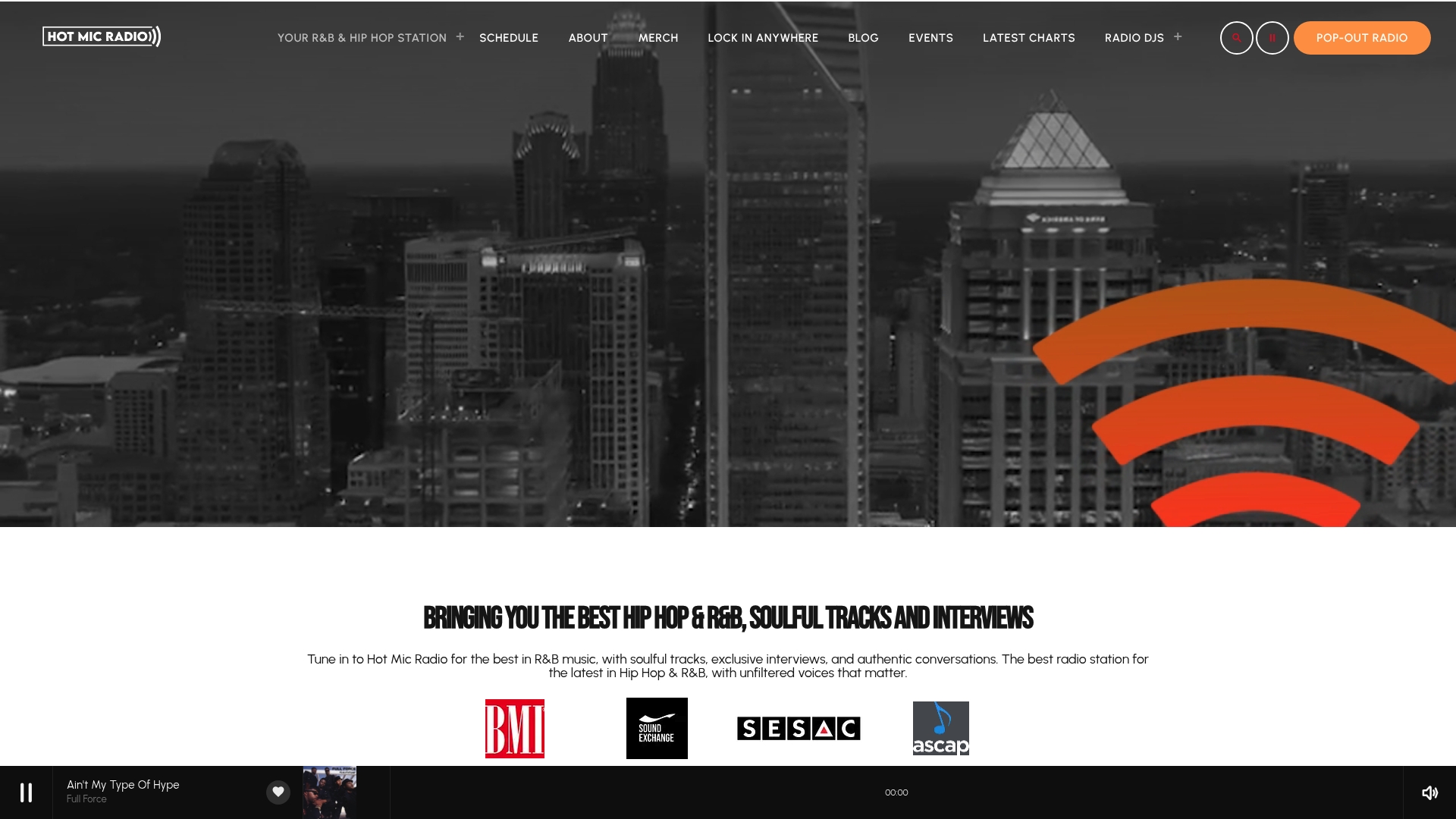
Open Hot Mic Radio on your device of choice, then hit play on whatever’s live, whether that’s a Live DJ set, a regional Hip-Hop spotlight, or one of our curated Neo-Soul and Lo-fi sessions. From there it’s the same drill: tap the Cast icon if you’re on Android or Chrome, tap AirPlay if you’re on an iPhone, and pick your TV.
Not sure which devices we work with? Our Lock In Anywhere page breaks down every platform Hot Mic Radio runs on. Between the Roots, the Vibe, and the Global Beat rotation, there’s a station worth blasting through your living room speakers tonight.
Picking the right long-term setup for how you actually listen
Casting from your phone every time works fine until it doesn’t, usually right when you’re mid-party and someone needs to make a call. That’s the real tradeoff: phone casting gives you flexibility and instant access to any station, while a TV-native app gives you stability and a remote you can hand to anyone in the room.
If you’re hosting, install a native app on the TV so nobody’s phone becomes a hostage to the aux. If you’re the background listener who just wants sound while you cook, casting from your phone is honestly the lower-effort move. If you’re the audiophile who cares about connection quality, keeping your TV on 5GHz Wi-Fi while your phone stays on 2.4GHz can cut down on the stutter that ruins an otherwise good session.
Pro Tip: A dedicated SSID for your streaming devices, separate from guest networks and smart home gadgets, cuts down on the interference that causes most dropped casts.
— Hot Mic Radio Team
Ready to bring Hot Mic Radio into your living room?
Once you’ve got casting figured out, Hot Mic Radio gives you a station built for the culture, no algorithm guessing what you want, just curated Hip-Hop, R&B, Gospel, Afrobeats, and Live DJ energy ready to fill the room the second you hit cast.
- Browse our full lineup on the Hot Mic Radio schedule page and pick a vibe for the night.
- Artists and independent creators looking for airplay can check out Basic Membership, Group Membership, or VIP Membership for promotion options.
- Brands and sponsors wanting to reach our Hip-Hop and R&B audience can head to our advertising page to get the conversation started.
Grab your phone or laptop right now, pull up a station, and cast it to your TV. See how it sounds filling the whole room instead of just your earbuds.
Where to check official casting documentation
For setup details straight from the source, these pages cover the technical side in full:
- Apple’s AirPlay support page for iPhone and iPad streaming to Apple TV or AirPlay 2 TVs.
- Google’s Chromecast troubleshooting guide for missing Cast targets.
- RadioUpnp on Google Play for an app-level look at Cast and DLNA support. Smart TV owners weighing which apps to install can also check this overview of smart TV apps for platform-specific comparisons.
Sources
- Stream video and audio from your iPhone with AirPlay — Apple Support
- Improve your Android audio casting experience – Streaming Help
- No Cast destination found – Streaming Help
- Chromecast Radio App — Cast Radio to TV & Speakers | Radio Adfree
FAQ
Can I stream radio on my TV?
Yes, you can stream radio on your TV using Google Cast, AirPlay 2, a native radio app installed on Android TV or Google TV, or by casting a browser tab from your computer. Any of these routes work as long as your TV and streaming device share the same Wi-Fi network.
Can I cast directly to TV?
Yes, if your TV has Google Cast or AirPlay 2 built in, you can cast directly without needing a separate Chromecast device or Apple TV. Open your radio app, tap the Cast or AirPlay icon, and select your TV from the list of available devices.
Why can’t I cast to Chromecast anymore?
The most common causes are a phone connected to the wrong Wi-Fi network, AP or client isolation enabled on your router, or an outdated Chromecast firmware. Google recommends checking your network settings first, then rebooting your router, and factory resetting the Chromecast only as a last resort.
How to sync your radio with TV?
There’s no manual syncing involved. Once you tap Cast or AirPlay from your radio app and select your TV, the receiver connects directly and plays the stream on its own, so your phone stays free while the audio keeps playing through the TV.