


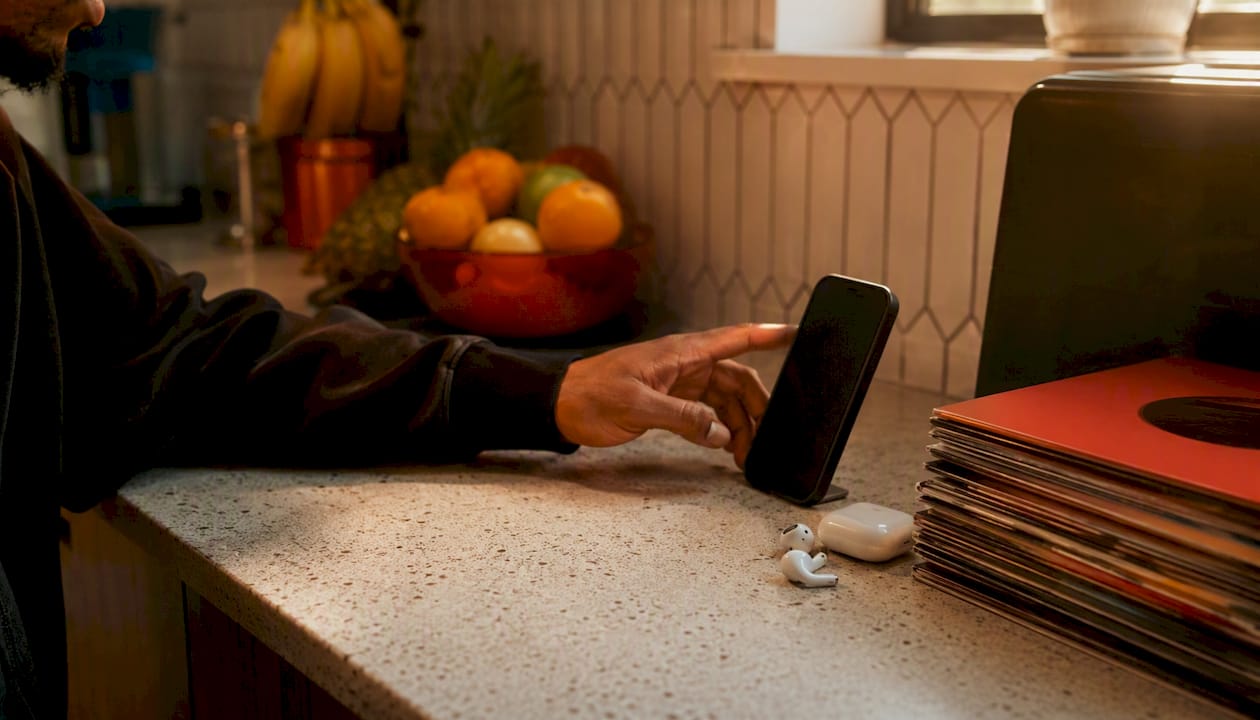
Yes, you can absolutely listen to live radio on your iPhone — and you don’t need any special hardware to do it. Your iPhone streams radio over the internet through Apple’s built-in Music app or a third-party app, not through an off-air FM receiver. According to Apple’s official support documentation, the Music app’s Radio tab gives you access to broadcast stations under Local Broadcasters and International Broadcasters, all delivered via internet streaming.
Here’s what you need to get started right now:
- Wi-Fi or cellular data (streaming requires a live network connection)
- The Music app (pre-installed on every iPhone) or a third-party radio app
- No Apple Music subscription required for broadcast radio access in the Music app
Three quick paths to your first station:
- Music app: Open Music → tap Radio → search by station name, call sign, or frequency
- Siri: Say “Hey Siri, play [station name]” and let it do the work
- Third-party app: Download an iPhone radio app from the App Store and search your station
“You can search for a station by name, call sign, frequency, or nickname and choose from stations listed under Local Broadcasters or International Broadcasters.” — Apple Support
Key Takeaways
Listening to radio on an iPhone means streaming over the internet — use the Music app, Siri, or a third-party app, and keep a battery-powered radio for emergencies when networks go down.
| Point | Details |
|---|---|
| No built-in FM tuner | iPhones stream radio over the internet; there is no accessible off-air FM receiver for general users. |
| Music app is the fastest start | Open Music → Radio → search by call sign or frequency; no extra app needed. |
| Pick apps by ecosystem fit | Prioritize CarPlay, Apple Watch support, and widgets over raw station count. |
| Streaming fails in disasters | Cellular networks can go down in emergencies; keep a battery-powered FM/AM radio as backup. |
| Hot Mic Radio streams on iPhone | Add hotmicradio.com to your Home Screen for one-tap access to live Hip-Hop and R&B, or download the official app in iOS app store. |
Table of Contents
- How do you listen to radio on an iPhone right now?
- Does your iPhone have a built-in FM tuner?
- What features actually matter when picking a radio app?
- How do you tune into Hot Mic Radio on your iPhone?
- Fixing buffering, managing data, and staying safe
- Why Hot Mic Radio is built around curated streaming
- Hot Mic Radio is your iPhone’s new favorite station
- Sources
How do you listen to radio on an iPhone right now?
Getting audio going takes under a minute. Here are three paths, each one solid depending on how you roll.
Path 1: Music App Radio Tab
- Open the Music app on your iPhone.
- Tap Radio in the bottom navigation bar.
- Tap the search icon and type a station name, call sign (like WBLS), or frequency (like 107.5).
- Select your station from Local Broadcasters or International Broadcasters.
- Tap play. Check the Now Playing bar at the bottom to confirm it’s streaming.
Path 2: Siri Voice Command
- Say “Hey Siri, play [station name or call sign].”
- Siri pulls the station from Apple’s Radio listings and starts playback automatically.
- Confirm it’s running on your lock screen or in Control Center.
Path 3: Third-Party Radio App
- Open the App Store and search for a radio app (Simple Radio is a widely used option).
- Install and open the app, then search for your station by name or genre.
- Tap play and verify the stream in your lock screen controls.
Per GadgetsNow’s step-by-step guide, the Music app and Siri are the fastest ways to start without installing anything extra.
Pro Tip: Add your favorite station as a Home Screen shortcut. In Safari, navigate to the station’s web player, tap the Share icon, and select “Add to Home Screen” for one-tap access every time.
Does your iPhone have a built-in FM tuner?
Short answer: no, not in any way you can actually use. iPhones do not expose an accessible FM receiver for live off-air reception. Every radio experience on an iPhone runs through internet streaming, full stop.
This surprises a lot of people, especially those switching from certain Android phones that do activate an FM chip when one is present. Lifewire’s tech coverage confirms that iPhones rely entirely on streaming rather than a hardware tuner, and that streaming will not work when your network is down.
What that means practically:
- No signal = no radio. Drop into a dead zone or lose your data connection, and the stream cuts out.
- Streaming costs data. Every minute of audio uses cellular bandwidth if you’re not on Wi-Fi.
- Availability varies by region. A station visible in the Music app for one country may not appear for users in another. Apple’s own documentation notes that broadcast station availability depends on your country or region.
One more thing worth saying clearly: do not rely on iPhone streaming for emergency alerts. When a hurricane, wildfire, or major outage hits, cellular networks and internet infrastructure can go down fast. Keep a battery-powered FM/AM radio at home for exactly those moments. That’s not a knock on streaming; it’s just the reality of how the technology works.
“Streaming requires network connectivity; when cellular or internet infrastructure is down, streamed radio will not reach users.” — Lifewire
What features actually matter when picking a radio app?
Station count is the flashiest number in any app description. Some apps advertise 30,000 U.S. stations or 90,000 worldwide. But raw numbers don’t tell you whether your local station is in there, or whether the app plays nicely with your AirPods, your car, or your wrist.
Pick based on ecosystem fit first, station catalog second. Here’s what to check:
- CarPlay support — if you drive, this is non-negotiable; it keeps your eyes on the road
- Apple Watch standalone play — lets you stream without your phone nearby
- Lock Screen and widget support — one-tap access without unlocking
- Sleep timer — useful for winding down without leaving audio running all night
- Audio format support — look for HLS, AAC, and MP3 compatibility; apps built on frameworks like FFmpeg handle a wider range of stream encodings
- Manual station entry — lets you add any stream URL, not just what’s in the app’s catalog
- Ad model — free-with-ads vs. a one-time purchase vs. subscription; know what you’re signing up for
| Feature | Why it matters |
|---|---|
| CarPlay support | Hands-free listening while driving; controls appear on your dashboard |
| Apple Watch standalone | Stream without your phone; useful during workouts |
| Lock Screen widget | One tap to resume your station without unlocking the phone |
| Sleep timer | Auto-stops playback so you’re not burning data overnight |
| Manual station URL entry | Add any internet stream, including stations not in the app’s catalog |
| Audio format support (HLS/AAC/MP3) | Broader codec support means fewer “stream not found” errors |
Always verify features on the App Store listing itself. Compatibility lines for watchOS and CarPlay are authoritative; marketing copy on third-party review sites sometimes lags behind app updates.
How do you tune into Hot Mic Radio on your iPhone?
This one’s easy, and we want you locked in fast. Hot Mic Radio streams live online, so your iPhone is the perfect listening device. Here’s how to get there:
- Open Safari (or any browser) on your iPhone.
- Go to Hot Mic Radio for direct streaming instructions and the live player.
- Tap play on the web player. Audio starts immediately.
- To browse shows by genre, head to the Hot Mic Radio channels page and pick your vibe — Hip Hop, R&B, Neo-Soul, Afrobeats, Gospel, and more.
- Bookmark the page or add it to your Home Screen (Share → Add to Home Screen) for one-tap access going forward.
Want to go deeper into the catalog? The Hip Hop & R&B archives are a great starting point if you want curated shows in one place. Independent artists looking to connect with listeners can also check out resources like finding an audience for original songs to understand how radio fits into the broader discovery picture.
Pro Tip: After adding Hot Mic Radio to your Home Screen, long-press the icon and select “Edit” to rename it something short like “Hot Mic” — keeps your Home Screen clean and makes it even faster to tap.
Fixing buffering, managing data, and staying safe
If your stream stutters, work through this list before assuming the app is broken:
- Check your connection first — switch between Wi-Fi and cellular to see which is stronger
- Force-quit and reopen the app — clears any stuck buffer state
- Try a different station temporarily — confirms whether it’s your network or that specific stream
- Lower the stream quality — some apps let you select bitrate; a lower setting buffers less on weak connections
- Check Settings > Cellular to see how much data your radio app is using per month; frequent streamers can burn through data quickly at higher bitrates
Battery and background play: streaming audio in the background is relatively light on battery compared to video, but Low Power Mode can interrupt background audio on some apps. For long sessions, stay on Wi-Fi and keep your screen off rather than dimmed.
Safety note: streaming radio depends entirely on cellular and internet networks. In a disaster scenario — a major storm, a power grid failure, a wildfire evacuation — those networks may be unavailable. A battery-powered or hand-crank FM/AM radio is the reliable backup for emergency broadcasts. Keep one accessible at home.
Why Hot Mic Radio is built around curated streaming
Here’s our honest take: the shift to streaming didn’t just change how people listen to radio. It changed what radio can be. A station no longer has to serve the broadest possible audience in a single geographic market. It can go deep.
That’s exactly what we built Hot Mic Radio around. Our programming isn’t a shuffle of whatever charted last week. We curate Hip-Hop, R&B, Neo-Soul, Gospel, Motown, Afrobeats, Dancehall, and Southern Soul with intention — live DJ sets that carry real energy, regional scene spotlights that give voice to artists who aren’t on the major label radar yet, and a music submission platform so independent artists can actually get heard. For artists navigating the streaming era, understanding how online radio serves artists in 2026 is worth reading alongside tuning in.
The listener who finds Hot Mic Radio isn’t just looking for background noise. They’re looking for someone who actually knows the culture and programs with care. That’s the gap we fill.
Hot Mic Radio is your iPhone’s new favorite station
Curated Hip-Hop and R&B, live DJ energy, and regional scene spotlights — all of it streams straight to your iPhone, no subscription required. Hot Mic Radio is the station for listeners who want more than an algorithm-generated playlist. We bring the culture to your speakers, every day of the week.

Browse Hip Hop shows and R&B archives to find your lane, or head straight to the live DJ shows guide to catch the next set. Independent artists can submit music directly through the site. Add Hot Mic Radio to your iPhone Home Screen today and make it your go-to stream.
Sources
Here are the primary sources used to build this guide — check them directly to verify any detail:
- Listen to radio stations in Music on iPhone – Apple Support
- How to Use FM Radio on Your iPhone or Android – Lifewire
- How to listen to radio on iPhone for free – GadgetsNow


Post comments (0)